
Image credits: MTG art by Borja Pindado
Beginner’s Guide
Once everything’s put in place, tracking things with this character sheet can be super simple. But admittedly, there’s a bit of a learning curve, especially if you haven’t worked with spreadsheets before. To help you get started, I’ll walk you through some of the basics here. A lot of this information is also on the “Guide” tab within the sheet itself.
Where do I start?
Before you do anything else, click the “File” menu at the top of the screen, and select “Make a copy” from the list of options. Save that file to your own Google Drive (if you don’t have a Google account, you’ll need to make one). Open that file, and now you’re ready to start editing!
Next, you’ll need to locate the blank versions of the following sheets:
- Front Sheet
- Back Sheet
- Spell Sheet (if applicable)
- Features Sheet
When you open the sheet for the first time, these sheets are hidden. There are two ways to unhide them.
- Click the hamburger menu (three stacked lines) at the bottom left of the page and select the relevant sheets in the menu that pops up.
- Click the “View” menu at the top of the screen, and hover your cursor over “Hidden sheets” in the list of options. Select the relevant sheets in the menu that pops up.
With me so far? Great. Let’s start putting in some info.
Character Details
This is probably the simplest part of the process. Find any empty, labeled cell (for example, CHARACTER NAME), and type the appropriate info into that cell. Here are the main examples on the Front Sheet.
| CHARACTER NAME | H2 |
| BACKGROUND | H4 |
| CLASS | K4 |
| SPECIES | H6 |
| SUBCLASS | K6 |
| SIZE | P3 |
| LANGUAGES | I55 |
| ARMOR TRAINING | J57 |
This info won’t affect any numbers, but it will obviously be necessary once you start playing your character. It will also help you get used to putting information into cells if you’ve never worked with spreadsheets before. By this point, you’re ready to start entering numbers.
Ability Scores
Before you enter any other numbers, you want to put your ability scores in the appropriate cells. These are labeled, so finding the right one should be easy, but just in case, I’ll list them below. When you open the sheet for the first time, all of these will be set at 10.
| Strength | D39 | / | [‘Front Sheet’!D39] |
| Dexterity | D46 | / | [‘Front Sheet’!D46] |
| Constitution | D55 | / | [‘Front Sheet’!D55] |
| Intelligence | G35 | / | [‘Front Sheet’!G35] |
| Wisdom | G46 | / | [‘Front Sheet’!G46] |
| Charisma | G57 | / | [‘Front Sheet’!G57] |
Character Level
Next, you want to make sure your character is the correct level. If you aren’t making this character at Level 1, locate cell M2 on the Front Sheet ([‘Front Sheet’!M2]), and enter the appropriate number between 1-20.
Proficiencies
Now, mark your proficiencies. Each skill and saving throw has a checkbox next to it. Once you click on one of these checkboxes, the sheet will add your Proficiency Bonus to that skill or saving throw automatically.
Equipment and Coins
Finally, add any equipment you’d like your character to have, including any coins. Make sure to list different types of coins in the right cells.
| Copper Pieces (CP) | P57 | / | [‘Front Sheet’!P57] |
| Silver Pieces (SP) | P58 | / | [‘Front Sheet’!P58] |
| Electrum Pieces (EP) | P59 | / | [‘Front Sheet’!P59] |
| Gold Pieces (GP) | P60 | / | [‘Front Sheet’!P60] |
| Platinum Pieces (PP) | P61 | / | [‘Front Sheet’!P61] |
At this point, you have enough information that the sheet can automatically calculate the following. Anything on this list is something you won’t have to adjust under normal circumstances:
- Strength Modifier
- Dexterity Modifier
- Constitution Modifier
- Intelligence Modifier
- Wisdom Modifier
- Charisma Modifier
- Proficiency Bonus
- Saving Throw Bonuses
- Skill Bonuses
- Initiative Bonus
- Passive Perception
- Passive Insight
- Passive Investigation
- Total Wealth (in GP)
Features
Adding features is pretty self-explanatory. Find the cell where you want to write a feature, and type the feature text in that cell. I like to have the full text of a feature on the Features Sheet; in fact, that’s the whole reason it exists. Then, I’ll list a shortened version of that feature on the Back Sheet.
Often, a feature will extend beyond a single line. This can make things a little bit more complicated. How you handle this is a matter of taste, but this is my method:
- Enter the entire text of the feature, or as much of the text as you want.
- Locate the “Wrap text” button on the grey toolbar near the top of the screen, and select the Wrap” option.
- Select the cell where you entered the feature and the cell below it.
- Click the “Merge cells” button, also on the grey toolbar.
- Repeat until you can see the entire feature.
- Optional: Adjust the font size so that the feature takes up less space overall.
Formulas
Hopefully everything is coming along well so far. But by this point, you will need to start putting in your own formulas if you want the sheet to calculate anything else for you. Thankfully, this is a lot less difficult than it sounds. In this next section, I’ll go through several common calculations you may want to put in the sheet. All you need to do is find the formula you want and copy + paste it into the right cell.
Armor Class
Cell: H9 / [‘Front Sheet’!H9]
Unarmored:
- Standard: =10+B46+IF(H12=TRUE,2,0)
- Barbarian: =10+B46+B55+IF(H12=TRUE,2,0)
- Monk: =10+B46+E46
Light Armor:
- Padded Armor/Leather Armor: =11+B46+IF(H12=TRUE,2,0)
- Studded Leather Armor: =12+B46+IF(H12=TRUE,2,0)
Medium Armor:
- Hide Armor: =12+IF(B46>2,2,B46)+IF(H12=TRUE,2,0)
- Chain Shirt: =13+IF(B46>2,2,B46)+IF(H12=TRUE,2,0)
- Scale Mail/Breastplate: =14+IF(B46>2,2,B46)+IF(H12=TRUE,2,0)
- Half Plate Armor: =15+IF(B46>2,2,B46)+IF(H12=TRUE,2,0)
Heavy Armor:
- Ring Mail: =14+IF(H12=TRUE,2,0)
- Chain Mail: =16+IF(H12=TRUE,2,0)
- Splint Armor: =17+IF(H12=TRUE,2,0)
- Plate Armor: =18+IF(H12=TRUE,2,0)
Hit Point Maximum
Cell: K11 / [‘Front Sheet’!K11]
- D6 Hit Die: =6+(B55M2)+(4(M2-1))
- D8 Hit Die: =8+(B55M2)+(5(M2-1))
- D10 Hit Die: =10+(B55M2)+(6(M2-1))
- D12 Hit Die: =12+(B55M2)+(7(M2-1))
If you want the sheet to automatically calculate your bonus to your Hit Points from your Level and Constitution modifier, but you want to roll Hit Points separately, you can use this formula instead: =(B55M2)+(Y), where Y equals the sum of all your Hit Point rolls.
Level
Cell: M2 / [‘Front Sheet’!M2]
| =IF(M6>354999,20,IF(M6>304999,19,IF(M6>264999,18,IF(M6>224999,17,IF(M6>194999,16,IF(M6>164999,15,IF(M6>139999,14,IF(M6>119999,13,IF(M6>99999,12,IF(M6>84999,11,IF(M6>63999,10,IF(M6>47999,9,IF(M6>33999,8,IF(M6>22999,7,IF(M6>13999,6,IF(M6>6499,5,IF(M6>2699,4,IF(M6>899,3,IF(M6>299,2,1))))))))))))))))))) |
Spell Attack Bonus
Cell: H2 / [‘Spell Sheet’!H2]
- Intelligence: =’Front Sheet’!B35+’Front Sheet’!E35
- Wisdom: =’Front Sheet’!B35+’Front Sheet’!E46
- Charisma: =’Front Sheet’!B35+’Front Sheet’!E57
Note: Your Spell Save DC calculates automatically based off of your Spell Attack Bonus.
Weapon Attack Bonus
Cells: I15:I20 / [‘Front Sheet’!I15:I20]
- Strength: =B35+B39
- Dexterity: =B35+B46
Carrying Capacity
No associated cell
- =[‘Front Sheet’!D39]*15
Jumping
No associated cells
High Jump:
- Running Start: =3+[‘Front Sheet’!B39]
- Standing: =(3+[‘Front Sheet’!B39])/2
Long Jump:
- Running Start: =[‘Front Sheet’!D39]
- Standing: =[‘Front Sheet’!D39]/2
Suggested Modifications
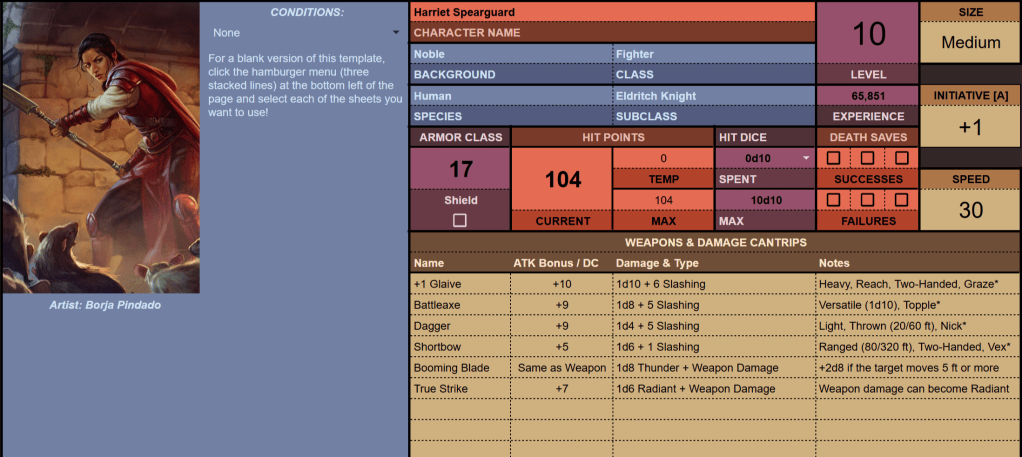
As shown in the example sheet, you can use a dropdown menu to create a Condition tracker for the front of your character sheet. Dropdowns are also useful for a variety of other things on the character sheet. For more information on dropdowns, see “Using Dropdown Menus.”
For the best viewing experience, I recommend going into the “View” menu and disabling Gridlines. You may also want to disable the Formula Bar during play, although it is very helpful when setting up your sheet for the first time.
If you don’t use experience in your games, you can use that part of the character sheet to track other important information, such as levels of exhaustion. In this case, do not use the formula to automatically calculate your experience.
If you have advantage on certain rolls, you can denote that easily by placing an A in brackets next to the relevant skill, saving throw, or other feature. You can denote Disadvantage with D or DA.
If you have expertise in a certain skill, you can modify the formula of that skill’s bonus to automatically calculate your bonus with expertise.
To modify the formula, hit the Enter key while the “bonus” cell is selected. Replace the “B35” in the formula with the following: (B35*2)
For example, if you had Expertise in the Athletics skill, the formula would look like this: =IF(B43=TRUE,B39+(B35*2),B39)
If you have the “Jack of All Trades” feature or a similar feature, you can modify the formula of your skill bonuses to automatically calculate your bonus based on half your Proficiency Bonus.
To modify the formula, hit the Enter key while the “bonus” cell is selected. At the end of the formula, but still inside the parentheses, add the following: +ROUNDDOWN(B35/2)
For example, if you were to apply this ability to the Athletics skill, the formula would look like this: =IF(B43=TRUE,B39+B35,B39+ROUNDDOWN(B35/2))
If your character doesn’t have a shield but has access to the Shield spell, Mage Armor, or something similar, you can adjust the Armor Class formula to mean something different when that checkbox is ticked.
If you are using this for the Shield spell, then replace the “2” in the IF statement of the formula with a 5 [From IF(H12=TRUE,2,0) to IF(H12=TRUE,5,0)]
If you are using this for Mage Armor, then use this formula: =IF(H12=TRUE,13,10)+B46
You can also use this approach even if you do have a shield by creating checkboxes on other parts of the sheet that you can mark when you have a certain spell active. The easiest way to do this is by creating a checkbox next to the spell’s name (you may need to fiddle with the “Merge cells” feature to do so cleanly) and creating an IF statement in the armor class formula that adds to your armor class while the box is checked. For example, for the spell Shield of Faith, you might put a checkbox in cell E22, and then add this to the end of the Armor Class formula: +IF([‘SpellSheet’!]E22=TRUE,2,0)
If your character has resistance to any damage types, I recommend renaming ‘Front Sheet’!H58 to “PROFICIENCIES AND RESISTANCES” and listing the relevant resistances in that area of the sheet.
If your character has spells from multiple sources, color coding different spells can be a great way to keep track of what spells come from where. You can also write what source the spell came from in brackets next to the spell’s name to make sure everything is clear to anyone who looks at your character sheet.
The example sheet shows how you might use this approach. All of the spells gained from being an Eldritch Knight are marked with a standard black checkmark, while the checkmarks next to spells gained from the Rod of Alertness are a dark magenta color. Spells gained from being an Eldritch Knight say “Eldritch Knight” next to the spell name, while spells gained from the Rod of Alertness say “RoA” (an acronym of the item’s name).
The “Merge cells” feature is a great way to customize the layout of your character sheet. Merging and unmerging cells can be especially helpful you want to add additional rows, embed images into cells, or mess with the basic layout in any other way. It is recommended to use this feature mostly on the Back Sheet, the Features Sheet, and the “Appearance and Notes” section of the Front Sheet.
The “Merge cells” button can be found on the main toolbar, in the same section as the “Fill color” button and the “Borders” button. Visually, it looks like two brackets with arrows pointing inwards. Unfortunately, there is not a keyboard shortcut for this feature, but you can use “ALT+O” to open a Format menu, which can also access the Merge cells feature.
When using the Merge cells button in the toolbar, there is an arrow next to the button that allows you to select the type of merge you want to use from a menu. The version of the feature in the Format menu you can open with ALT+O will automatically open this menu. Making use of this menu and the different options allows you to merge cells much quicker.
A good understanding of the “borders” tool is also recommended if you plan to merge and unmerge cells.
If there is something you want to replicate from the example sheet and you cannot figure out how to do it yourself, you can always copy + paste.
When you enter a number into a blank cell, Google Sheets will often automatically align it to the far right. You can realign these numbers with the “Horizontal Align” button.
You can color code your sheets more effectively by utilizing the Color Palette sheet. To do so, it is recommended to pick multiple shades of a certain color and arrange them in order from darkest to brightest (or vice versa) in horizontal lines. An example of this is included on the Example Color Palette sheet.
While you are working to color code a sheet in this way, it is helpful to move the color palette sheet so it is the farthest left sheet in the list at the bottom of the screen and then refresh the page if you are using custom colors. Doing this will cause Google Sheets to automatically organize the custom colors in the order that you have them on the color palette.
Once you are done color coding the sheet, you can move the color palette back to the far right of the list at the bottom of the screen. You can also choose to delete it entirely if you wish.
Using Dropdown Menus
Dropdowns can be incredibly useful for tracking equipment and uses of certain features.
The example sheet uses a dropdown to condense multiple pieces of equipment from an Adventurer’s Pack into a single cell. It also uses dropdowns to track hit dice, as well as uses of Second Wind, Action Surge, Indomitable, and the Guarded Mind benefit of the Mage Slayer feat. It also uses a dropdown menu to track what Weapon Masteries it has available.
To create a dropdown, type “@dropdowns” into the relevant cell, then you will see the option to either create a new dropdown or use a preset. Select the option to create a new dropdown (or simply hit the Enter key) and a menu will open up, enabling you to customize the options you wish to use.
When I am using dropdowns to track features, I like to go into “Advanced Options” and select the Arrow display style. This makes the menu less intrusive so it blends in better with the rest of the sheet.
You can also use a dropdown menu to track conditions. If you want to do so, I recommend selecting “Allow multiple selections” in the Data Validation menu (you have to use the Chip display style if you want to allow multiple selections).
I recommend color coding the conditions so that they are easy to find and recognize. For example, you could make the charmed condition pink, as that color is often associated with enchantment magic, and you could make the Poisoned condition green. Of course, you can also copy + paste the condition tracker from the example sheet if you don’t want to make your own.
FAQ:
You’ve reached the FAQ section. If you have a question about using the sheet that I haven’t answered here, send me an email at shieldoffaith5e@gmail.com, and I’ll do my best to answer it!
This work is unofficial Fan Content permitted under the Fan Content Policy. Not approved/endorsed by Wizards. Portions of the materials used are property of Wizards of the Coast. ©Wizards of the Coast LLC.
